This article will show you how to add a family member to your esportsdesk.com User Account.
Step 1
Login to your User Account if you already have one, or Create a User Account if you don't already have one.
Step 2
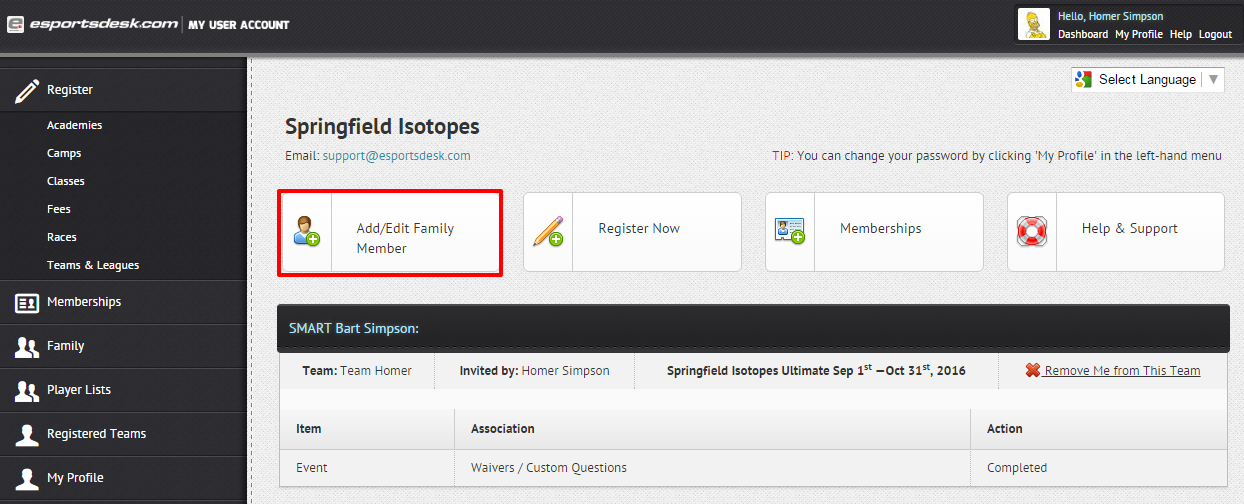
To add a family member, click on the "Add/Edit Family Member" button at the top of the dashboard in your user account page.
Step 3
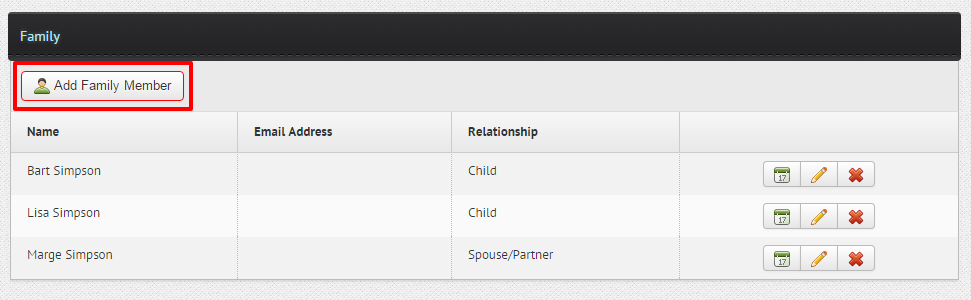
Then click "Add Family Member".
Step 4
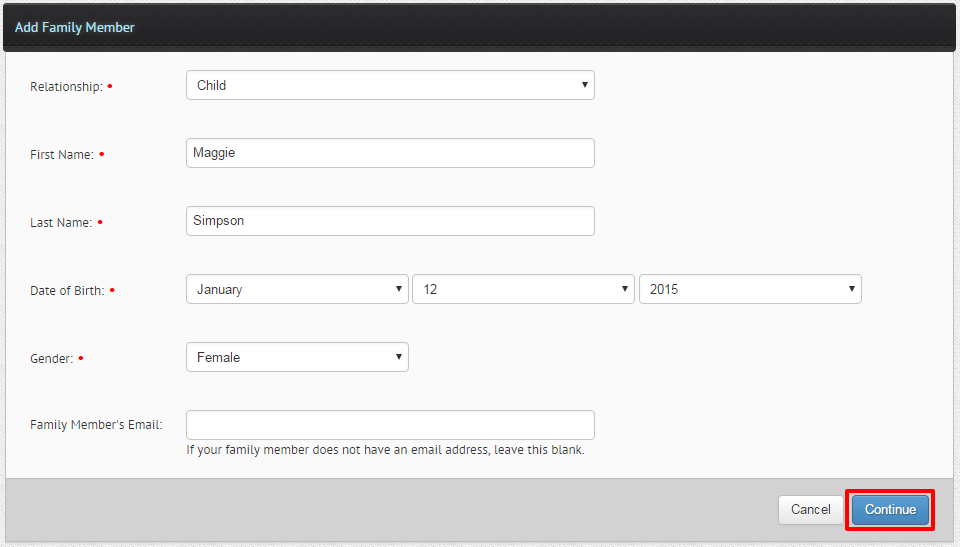
Fill in the details of your family member using the form provided, then click "Continue".
NOTE: If the Family Member you are adding already has an account, you will see the following below alert. This WILL NOT affect your ability to register your Family Member or purchase memberships for them.
Click Send Request. As you wait for the request to be approved, you will be able to purchase registrations and/or memberships for the on the family member's behalf, but you will not be able to view or edit their profile details.

RELATED ARTICLES:
What if My Child Does Not Have an Email Address?
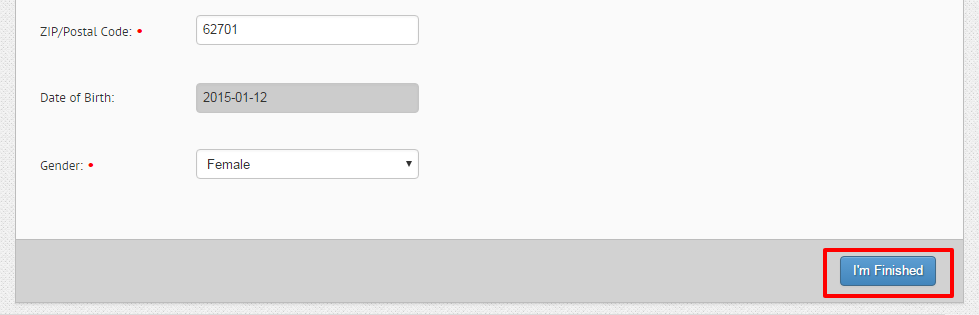
Double check to make sure your family member's information is correct, or if you need to add/edit additional information such as phone numbers or change his/her address. Click "Im Finished" when done to submit.
Was this article helpful?
That’s Great!
Thank you for your feedback
Sorry! We couldn't be helpful
Thank you for your feedback
Feedback sent
We appreciate your effort and will try to fix the article