If a user made an offline payment (something other than paying by credit card online) to a registration, or registered using the cash, check or money order, e-transfer, or venmo, you can add that record to the system to show that you have recieved the payment.
Step 1
Login to your Administrator account
Step 2
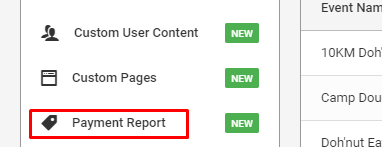
Click Payment Report in the Registration & Membership section of the administration navigation
Step 3
Create a Payment Report by filling in your search criteria in the above boxes. You will need to adjust the date range to search for the user's original registration record.
Step 4
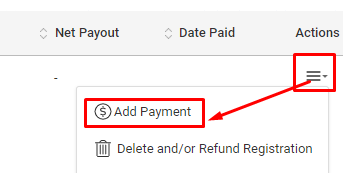
You can add an offline payment by selecting the Add Payment option in the Actions menu (located on the right end of the table) for the user's original registration record . This will allow you to record payments make by check or money order and will also allow you to process a credit card payment for them right there and then.
Step 5
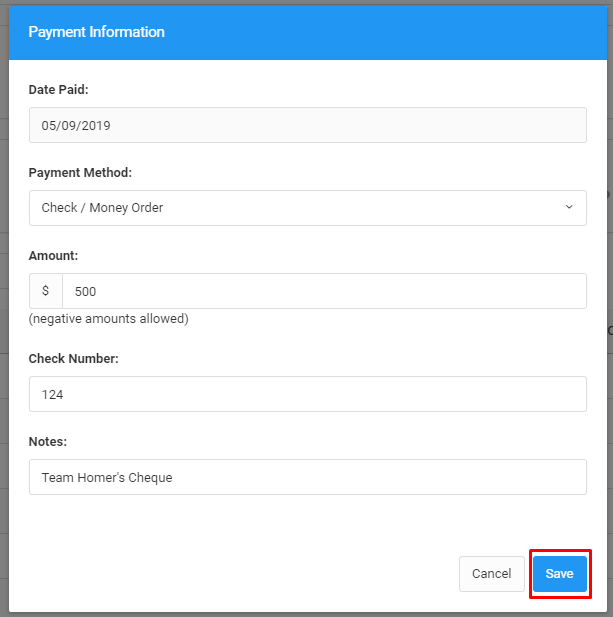
Fill in the Check Information as requested, then click Save.
Step 6
A "Manual Payment" entry will be made in the Payment Report based on the info in the above step.


Was this article helpful?
That’s Great!
Thank you for your feedback
Sorry! We couldn't be helpful
Thank you for your feedback
Feedback sent
We appreciate your effort and will try to fix the article